How to Pay for an Invoice Online
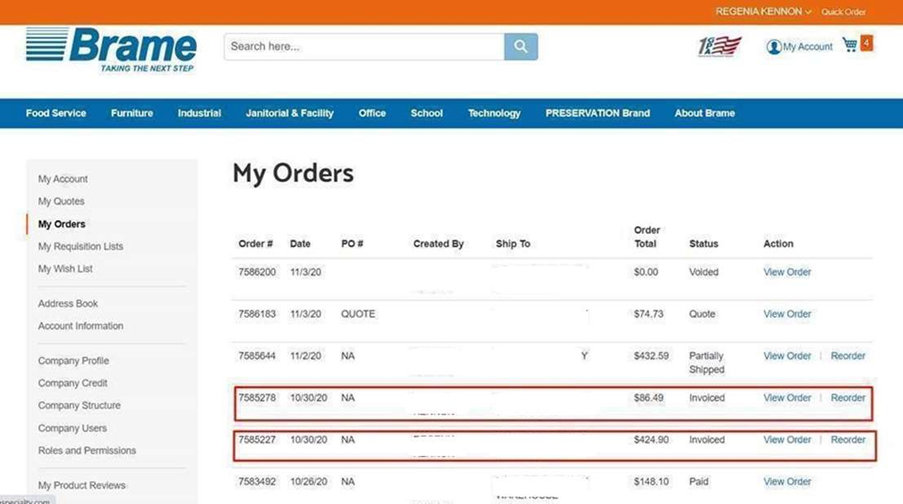
• Once Logged in, you will need to click on My Orders
• Click on View Order of an order that says Invoiced
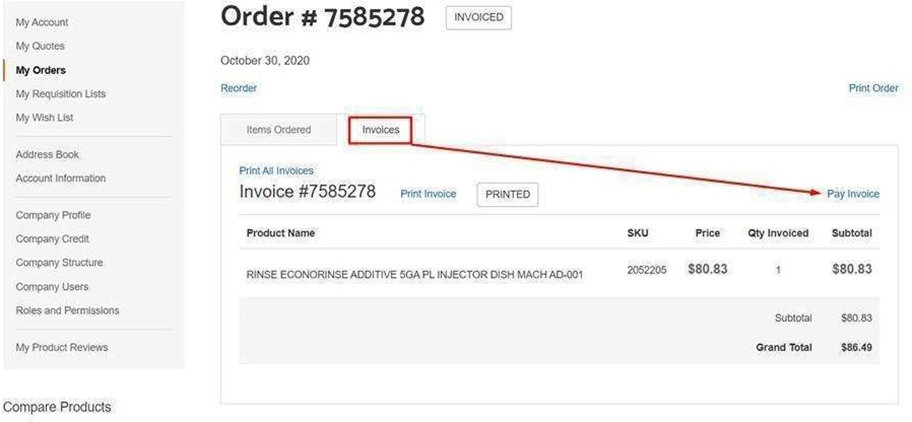
• Click on Invoices Tab
• Then Click on Pay Invoice
You are taken into our backend payment system.

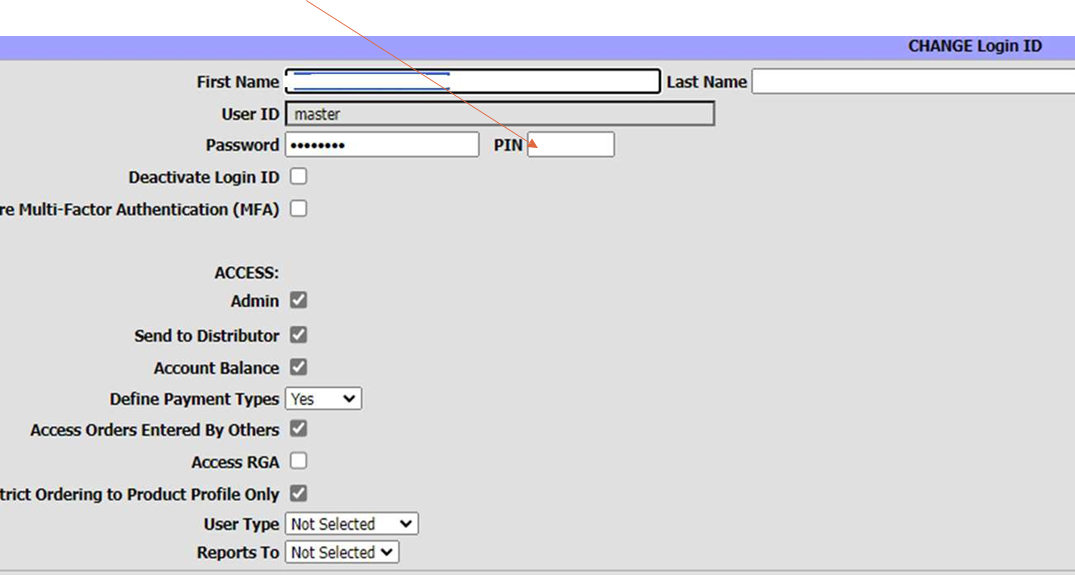
• If this this is the first time, you are logged in to make a payment off the site you will need to establish a PIN
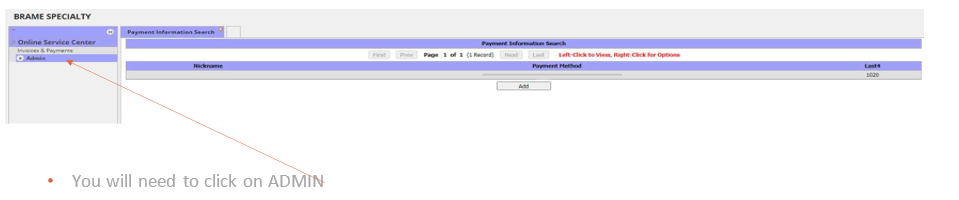
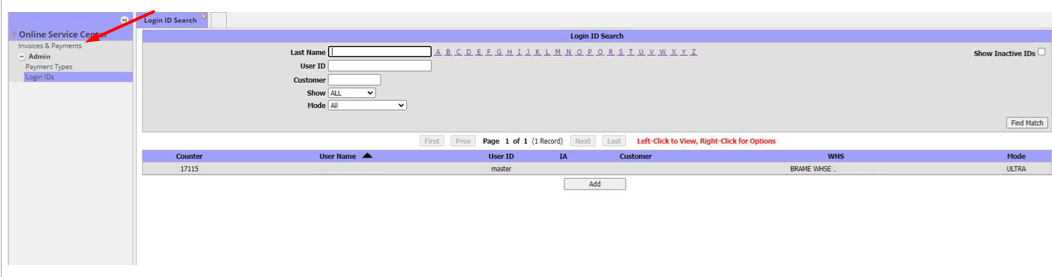
• Once you click Admin you will need to click Login IDS then right click on the ID there and click Change
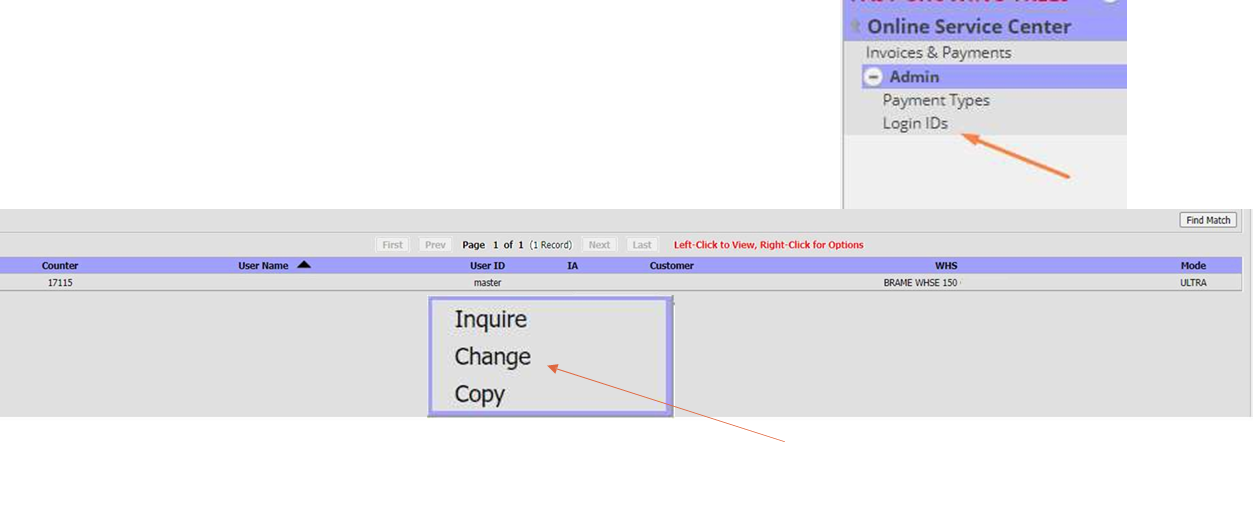
• You will need to choose a pin you will need to remember that PIN they will need it to make payments once done you will click OK at the bottom of the screen
• You will need to click on Invoice and Payments
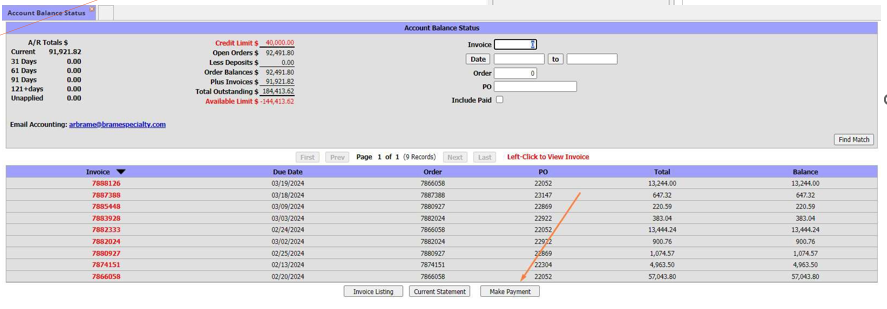
• Then your Account Balance Sheet will come up
• You need to click on Make a Payment
• You will need to Enter the PIN you created
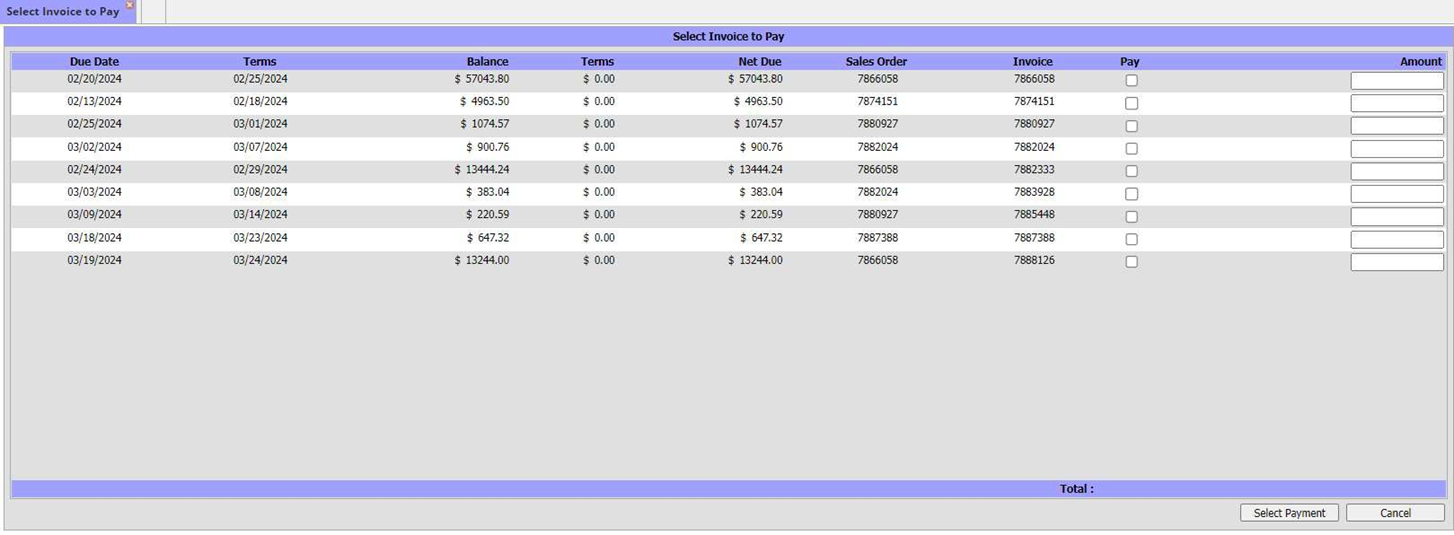
Select the invoices you wish to pay or enter the amount you wish to pay at this time and click select payment.
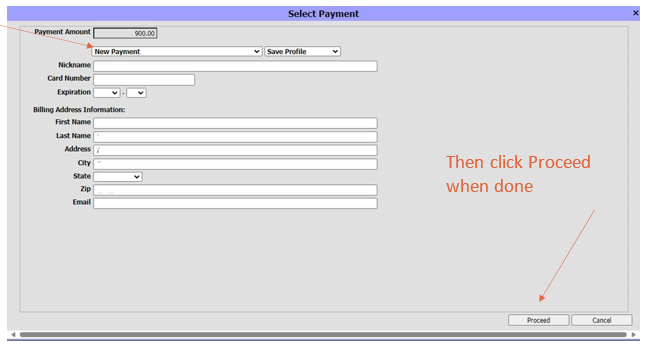
• You will select the card they wish to pay with, You will need to use the pull-down arrow where it says New Payment to select the card you need.
Was this article helpful?
That’s Great!
Thank you for your feedback
Sorry! We couldn't be helpful
Thank you for your feedback
Feedback sent
We appreciate your effort and will try to fix the article